
 Stemdeck
Getting started with Stemdeck
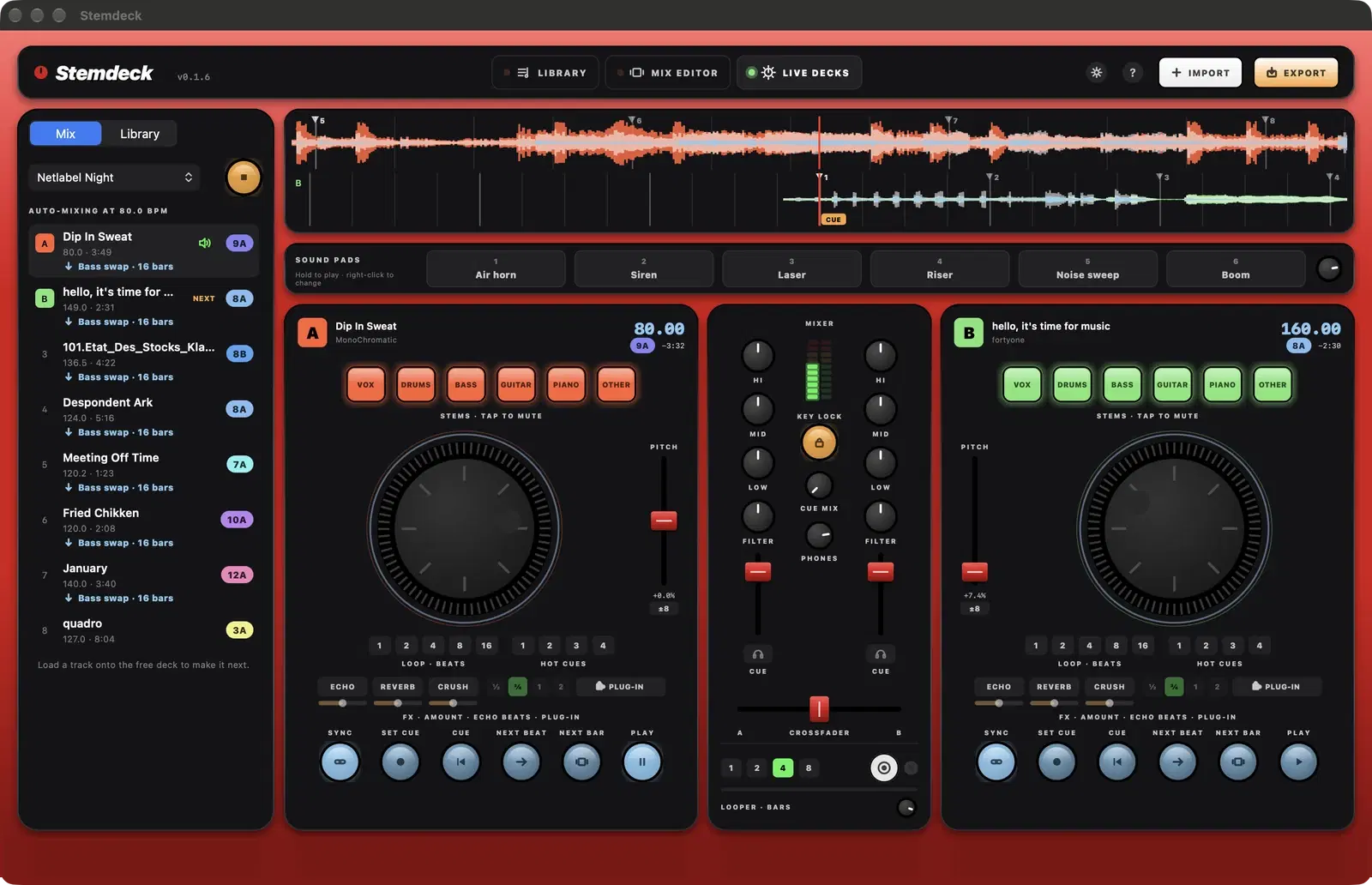
Stemdeck has three screens, switched from the bar at the top of the window: Library for your music, Mix editor for building and exporting mixes, and Live decks for playing.
Everything runs on your computer: Stemdeck is a free download for Mac, Windows and Linux, and is coming to the Mac App Store. Import a few tracks, split their stems, then build a mix or play them live.
1. Import your music
- Click Import at the top right, press Shift Command I (Shift Ctrl I on Windows and Linux), or drag files or whole folders onto the library.
- Stemdeck reads MP3, AAC and M4A, WAV, AIFF, FLAC, ALAC and CAF files.
- Each track is analysed as it arrives: BPM and beat grid, Camelot key, energy and a three band waveform.
- Your tracks appear in the Library with their waveform, BPM, key, stems and energy.
- Title, artist, album, label, ISRC, genre, year and artwork are read from the file's tags.
2. Split stems
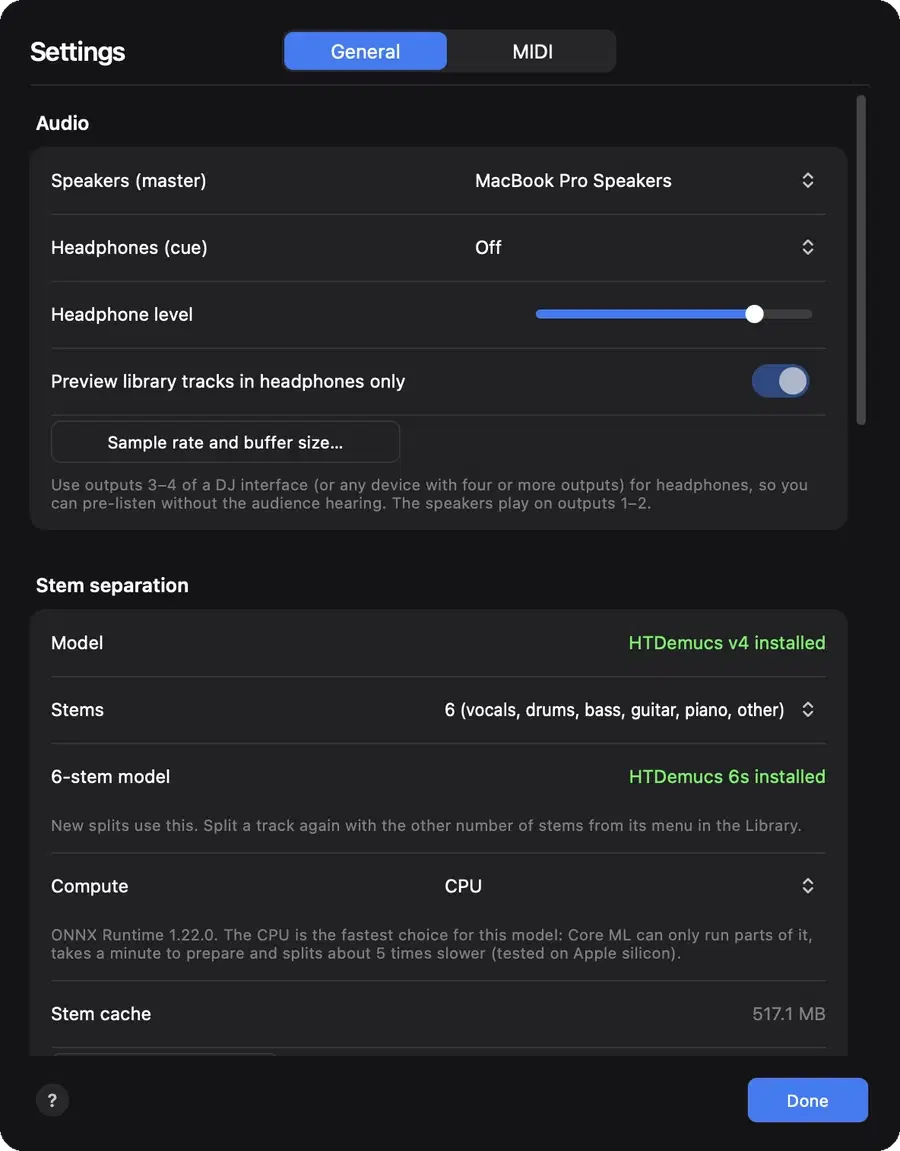
Click Split in a track's Stems column, or select several tracks and click Split stems. Each track is separated into six stems (vocals, drums, bass, guitar, piano and other) or four, as set in Settings (see Stem separation). The Stems column shows Splitting into 6 stems with the percentage done, and a coloured dot appears for each stem when it's finished.
3. Build a mix or play live
- Select tracks and click New mix from the toolbar to open them in the Mix editor, ordered by key and tempo.
- Drag a track from the library onto a mix in the sidebar to add it, or onto a deck to load it.
- Or open Live decks and load a track onto deck A or deck B from the Library tab on the left.
Settings
Click the settings button in the top bar, or press Command comma (Ctrl comma on Windows and Linux), to choose your speaker and headphone outputs, the number of stems and the chip used for stem separation, the watched downloads folder and your Jamendo client ID. Settings also shows how much space your stems use, with a button to clear them.
Version and updates
The version number sits next to the Stemdeck wordmark at the top left. In the downloadable version, Stemdeck checks for a new version each time it starts. When one is out it asks once whether to download it, and the version number turns into an Update button that opens the download page. Your library, stems and mixes are kept when you install the new version.
Help inside the app
The round ? button in the top bar opens the help page for the screen you're on (on the Mac App Store version, from 1.1): Library, Find music, Mix editor or Live decks. Export, Get info, the Stemdeck Pro screen and both Settings tabs have their own ? button too.
Keyboard and mouse
- Space plays or pauses the track previewing in the library, and plays or pauses the mix in the Mix editor.
- Shift Command I imports music and Command comma opens Settings (Shift Ctrl I and Ctrl comma on Windows and Linux).
- Drag a knob up or down to turn it, and double-click it to reset.
- Double-click the pitch fader to return to 0%, and the crossfader to centre it.
- Right-click a track in the library for every action: load to a deck, get info, split stems, add to a mix and more.
Questions
What do I need to run Stemdeck?
The downloadable version runs on Windows 10 or 11 (64-bit), 64-bit Linux, and macOS 12 or later on Apple silicon or Intel. The Mac App Store version needs a Mac with Apple silicon and macOS 15 or later.
Does Stemdeck change my music files?
No. Stemdeck reads your files where they are and keeps its analysis, stems and mixes in its own storage on your computer.
Try it in Stemdeck
Free downloads for Mac, Windows and Linux, with the stem models included. Coming soon to the Mac App Store for Macs with Apple silicon.