
 Stemdeck
Play live on two decks with stems
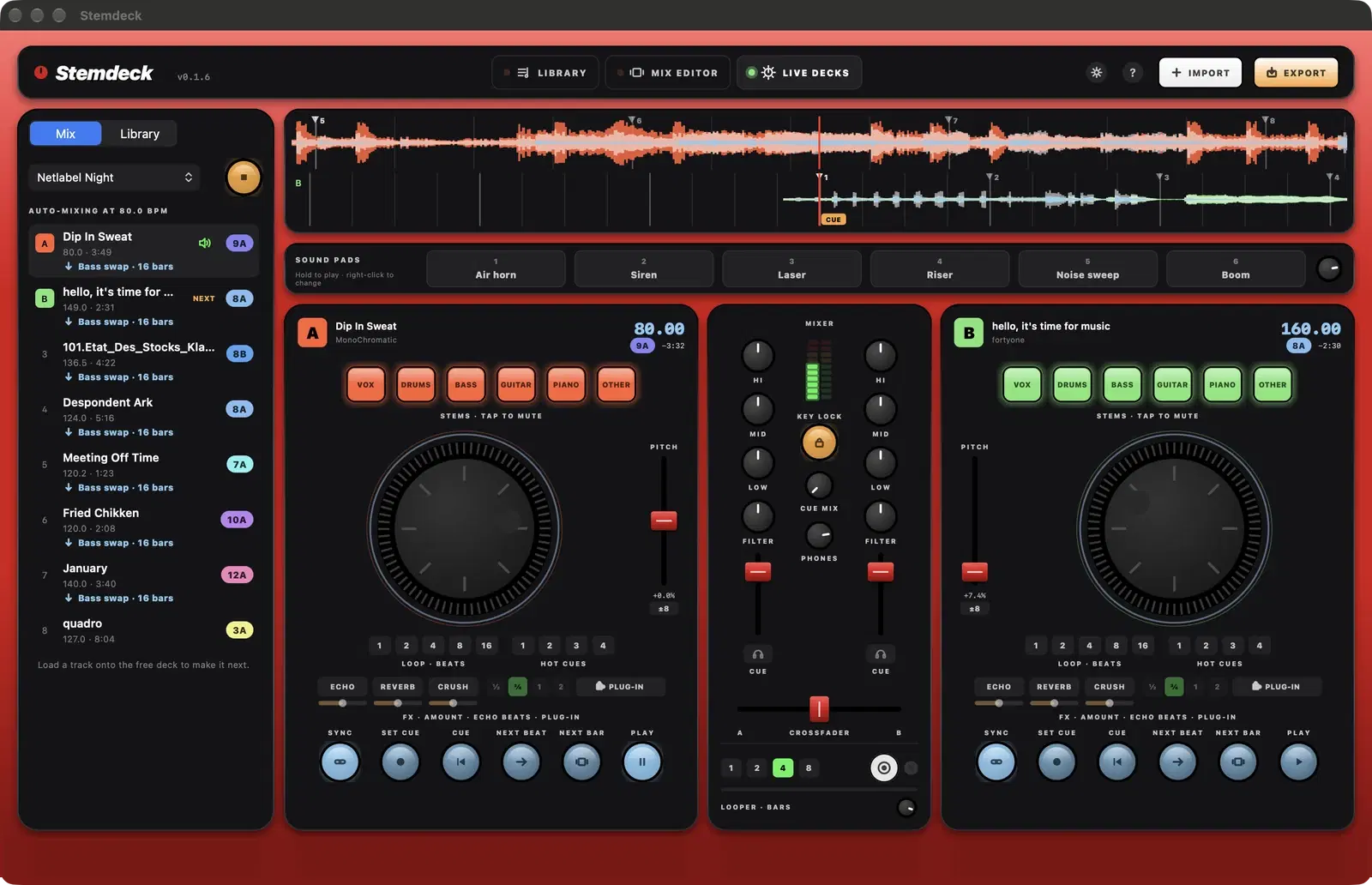
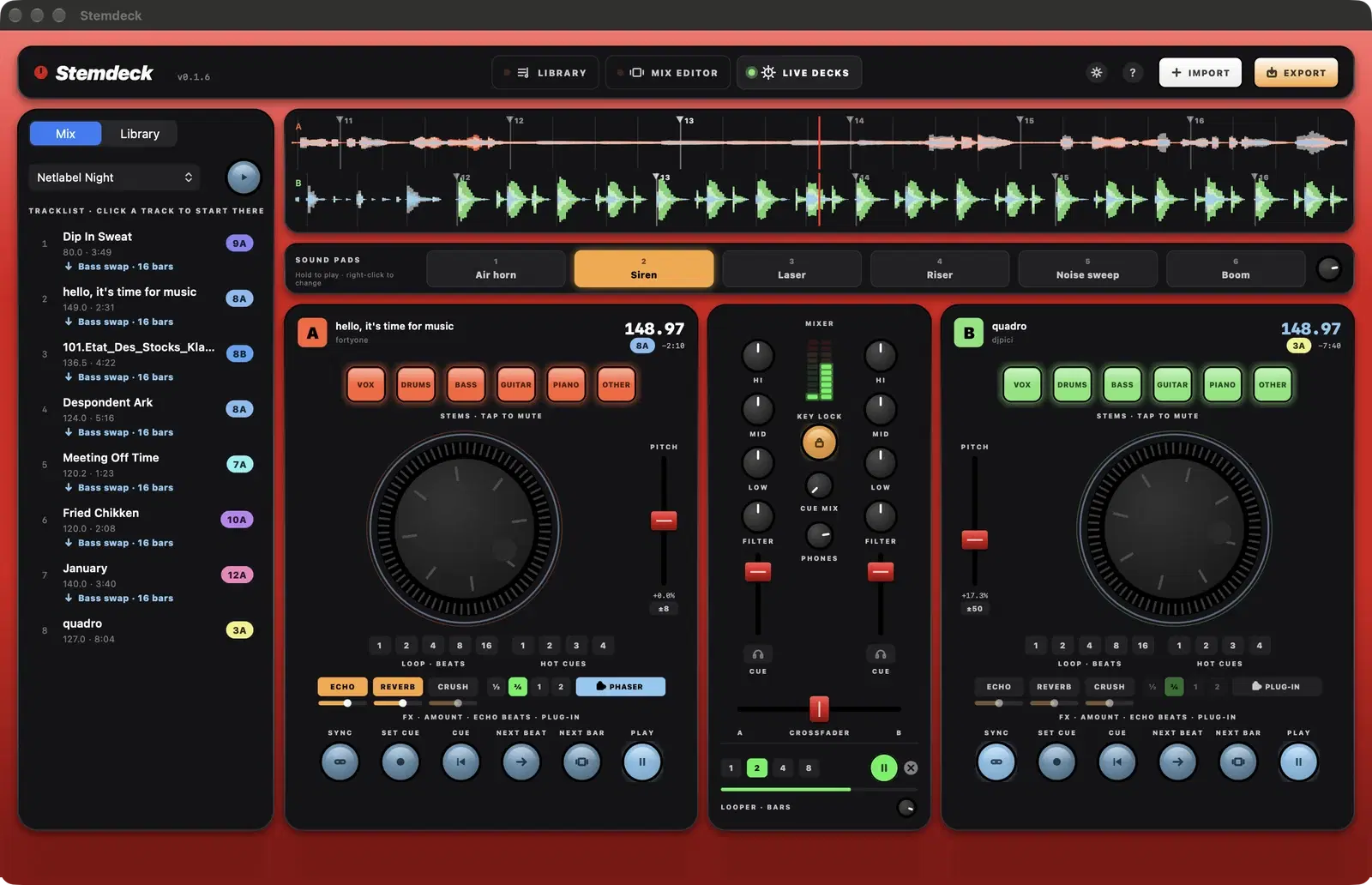
Live decks has two decks, a mixer between them and scrolling waveforms above. The panel on the left holds your mix and your library.
Load and play
- In the left panel's Library tab, click A or B next to a track, or drag it onto a deck.
- A track that isn't split yet plays straight away and starts splitting. The deck switches to its stem pads when the stems are ready, and shows Splitting into 6 stems with the percentage done until then.
- Play / Pause starts the deck. Cue returns it to the track's cue point, or to the first beat if no cue point is set.
- The scrolling waveforms show the beat grid: lines on beats and bars, and a flag on each bar numbered from the track's first downbeat (Windows, Linux and the downloadable Mac version).
- Drag the jog wheel to nudge the track: while it plays this bends the tempo like touching a platter, and while it's paused it scrubs.
- Drag the scrolling waveform at the top to scrub through a deck.
Tempo
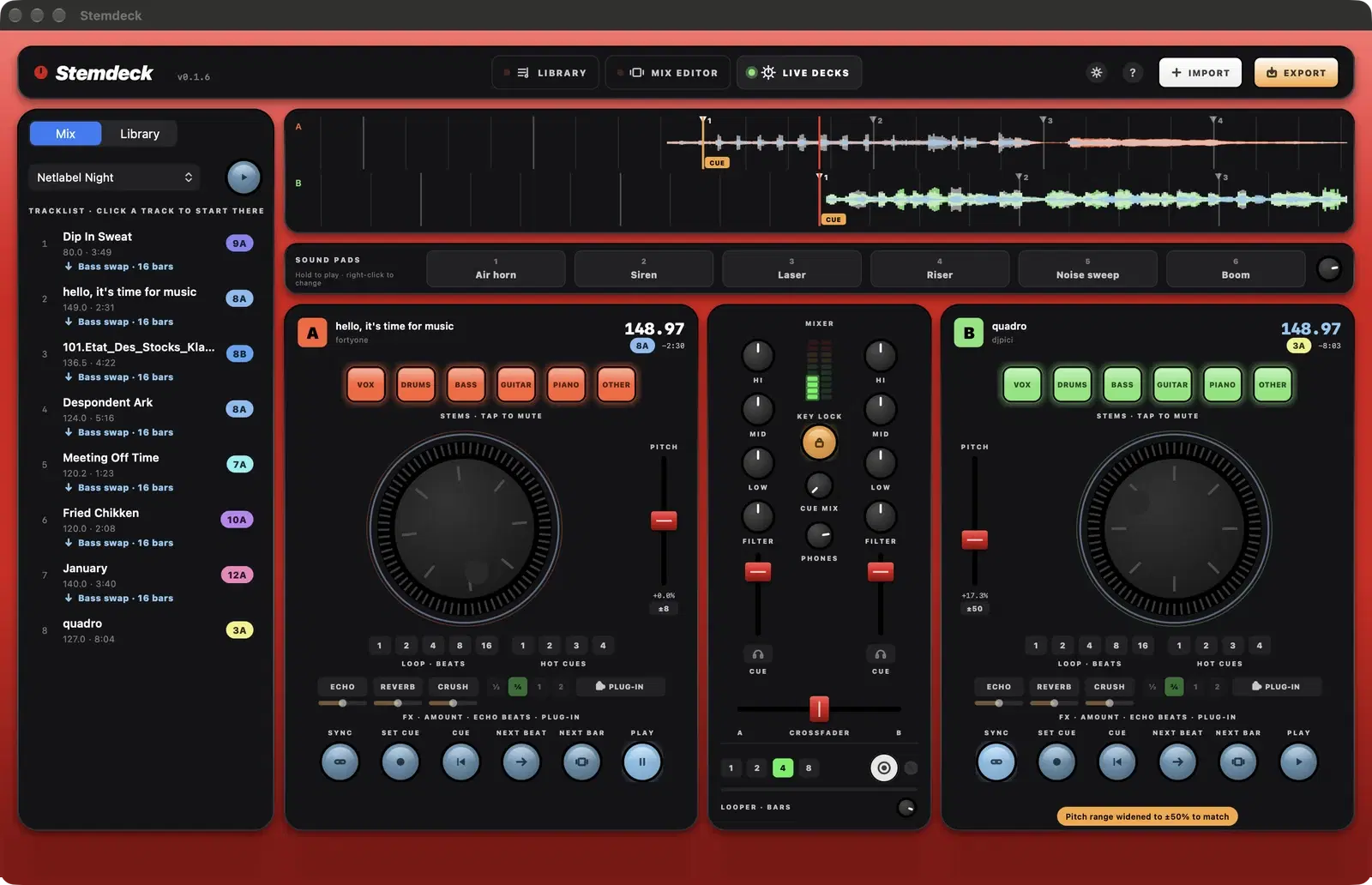
- Sync matches the deck's tempo to the other deck and lines up the beats. Half and double time tracks are matched too. If the match needs more than the deck's pitch range, Sync widens it to 16% or 50% and says so (downloadable version, from 0.1.4).
- The pitch fader changes the tempo within plus or minus 8%. Click the range under it for 16% or 50%, and double-click the fader to return to 0%.
- Key lock, the orange button in the mixer, keeps the key the same when the tempo changes.
Set the cue point
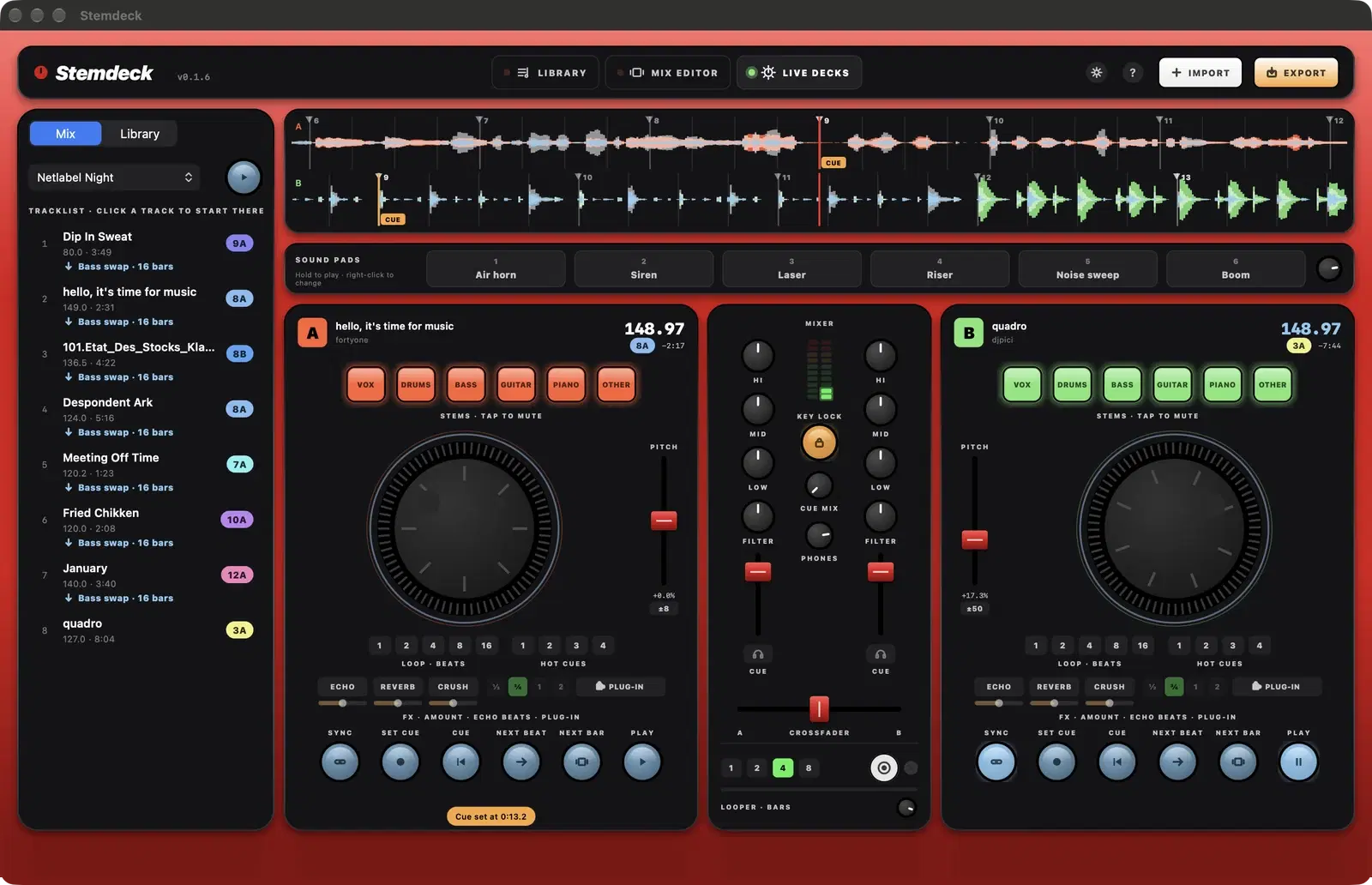
In the downloadable version (from 0.1.6), Set cue sits between Sync and Cue on each deck. Drag the scrolling waveform, or play, to the spot you want and press Set cue: that spot becomes the track's cue point and the deck shows Cue set at with the time. Cue then goes back there instead of to the first beat.
The cue point is saved with the track, so the next time you load it, on either deck, it's ready at its cue. An orange CUE tag marks it on the scrolling waveform. Shift D / Shift K set it from the keyboard.
Start on the next beat or bar
In the downloadable version (from 0.1.4), Next beat and Next bar sit between Cue and Play on each deck (the row reads Sync, Set cue, Cue, Next beat, Next bar, Play). Press one while the other deck is playing and the deck starts exactly on that deck's next beat, or its next downbeat, from its own nearest beat or downbeat. The button blinks while it waits; press it again to cancel. Sync first to keep the two in time after they meet.
Stems, cues and loops
- Tap a stem pad to mute that stem and tap again to bring it back. Hold a pad to solo its stem until you let go. Decks show four pads (Vox, Drums, Bass, Other) or six (with Guitar and Piano), matching the track's stems. Pads glow while their stem is playing.
- Hot cues 1 to 4: tap an empty cue to set it on the nearest beat, tap a set cue to jump to it and right-click it to clear it. Cues are saved with the track.
- Loop 1, 2, 4, 8 or 16 beats from the nearest beat. Tap the same length again to leave the loop.
Mixer
- Hi, Mid and Low cut down to a kill or boost slightly. Filter sweeps a low-pass to the left and a high-pass to the right.
- Channel faders set each deck's volume and the crossfader blends between deck A and deck B.
- The meters show each deck's level.
Keyboard shortcuts
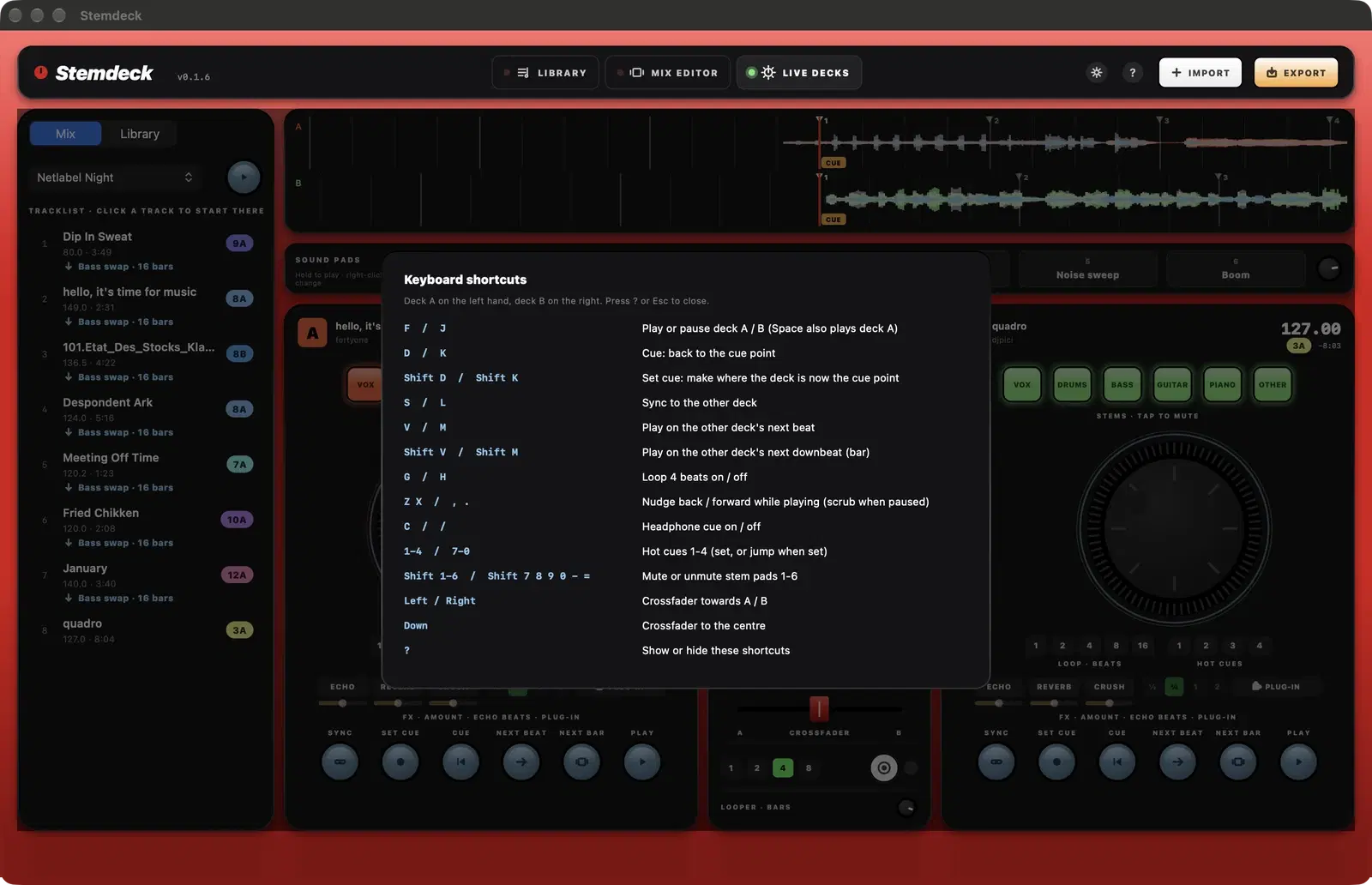
In the downloadable version (from 0.1.4), the live decks can be played from the keyboard. Press ? to show the list on screen. Keys on the left of the keyboard work deck A, the matching keys on the right work deck B.
- F / J: play or pause deck A / B (Space also plays deck A). D / K: back to the cue point. Shift D / Shift K: set the cue point here. S / L: sync.
- V / M: play on the other deck's next beat. Shift V / Shift M: on its next bar.
- G / H: loop 4 beats on or off. Z X / comma full stop: nudge back or forward while playing, scrub while paused.
- C / slash: headphone cue on or off.
- 1 to 4 / 7 to 0: hot cues 1 to 4 (set, or jump when set).
- Shift 1 to 6 / Shift 7, 8, 9, 0, minus, equals: mute or unmute stem pads 1 to 6.
- Left and Right arrows move the crossfader towards A or B, and Down centres it.
Effects
Each deck has Echo, Reverb and Crush (on the Mac App Store version, from 1.1). In the downloadable version (from 0.1.4) they're separate buttons that can all run at once, each with its own amount slider underneath (double-click a slider for 50%). They run in the order crush, then echo, then reverb, so echoes and reverb carry the crushed sound. The ½, ¾, 1 and 2 buttons set the echo length in beats, following the deck's tempo. On the Mac App Store version, one effect runs at a time with a shared amount knob.
Stemdeck Pro: sound pads, looper and plug-ins
Stemdeck Pro is an optional $0.99 a month subscription. In the downloadable version it's paid through Stripe in your browser and comes with a licence key; on the Mac App Store version (from 1.1) it's an in-app subscription through Apple. Without it, the Pro controls open a screen describing what Pro adds, and the rest of Stemdeck works as before. See the Stemdeck Pro page for details.
- Sound pads, above the decks: hold a pad and its sound loops until you let go. Right-click a pad to pick an audio file (up to 30 seconds) or one of the built-in sounds, or drop a file on it. Pads keep their sounds between launches and can be mapped to MIDI controller buttons.
- Looper, under the crossfader: pick 1, 2, 4 or 8 bars and press the round button. Stemdeck records your mix from the next beat of the playing deck, then loops it on top in time. Press again to stop or play the loop, use the small knob for its level and the cross to clear it.
- Plug-ins: the Plug-in button on each deck lists six built-in effects (Phaser, Flanger, Chorus, Resonant filter, Drive and Compressor) and the effect plug-ins installed on your computer: VST3 on Windows, Linux and Mac, plus Audio Units on Mac. Pick one to insert it after the deck's effects and open its editor. The same menu opens the editor again, bypasses or removes it. Stemdeck remembers each deck's plug-in and its settings.
- In the downloadable version, Settings shows your licence key and a Manage subscription button that opens Stripe's page for cancelling or changing your card. Type the key on another computer to use Pro there too. On the Mac App Store version, manage the subscription in the App Store under your account's Subscriptions.
Auto-mix across the decks
In the left panel's Mix tab, pick a mix and press play. Stemdeck loads the first track on deck A and the next on deck B, brings each track in on the transition's first beat with its stem curves and echo, then loads the following track onto the deck that just finished. It keeps going even when the window is hidden.
- Click a track in the list to start the auto-mix from there.
- To change what comes next, load a track onto the deck that isn't playing. After the last track, that adds a track to the end.
- The deck that's playing is protected, so a stray click can't stop the set.
Questions
Can I use a MIDI controller?
Yes: map any MIDI DJ controller with MIDI learn in Settings, MIDI (on the Mac App Store version, from 1.1). See MIDI controllers.
Does auto-mix use the same transitions as the Mix editor?
Yes. It plays the mix's own transitions, stem curves, track stem levels, drawn stem levels and tempo settings.
Try it in Stemdeck
Free downloads for Mac, Windows and Linux, with the stem models included. Coming soon to the Mac App Store for Macs with Apple silicon.