
 Stemdeck
DJ controllers that work as soon as you plug them in
In the downloadable version of Stemdeck (from 0.1.8), nine controllers work as soon as you plug them in: the Pioneer DDJ-400, DDJ-FLX4, DDJ-200, DDJ-FLX2 (AlphaTheta), DDJ-SB3 and DDJ-REV1, and the Hercules DJControl Inpulse 200, 300 and 500. Each mapping is made from the maker's own published MIDI list. The mapping loads by itself unless you've already made one of your own, and the buttons light up to match the decks.
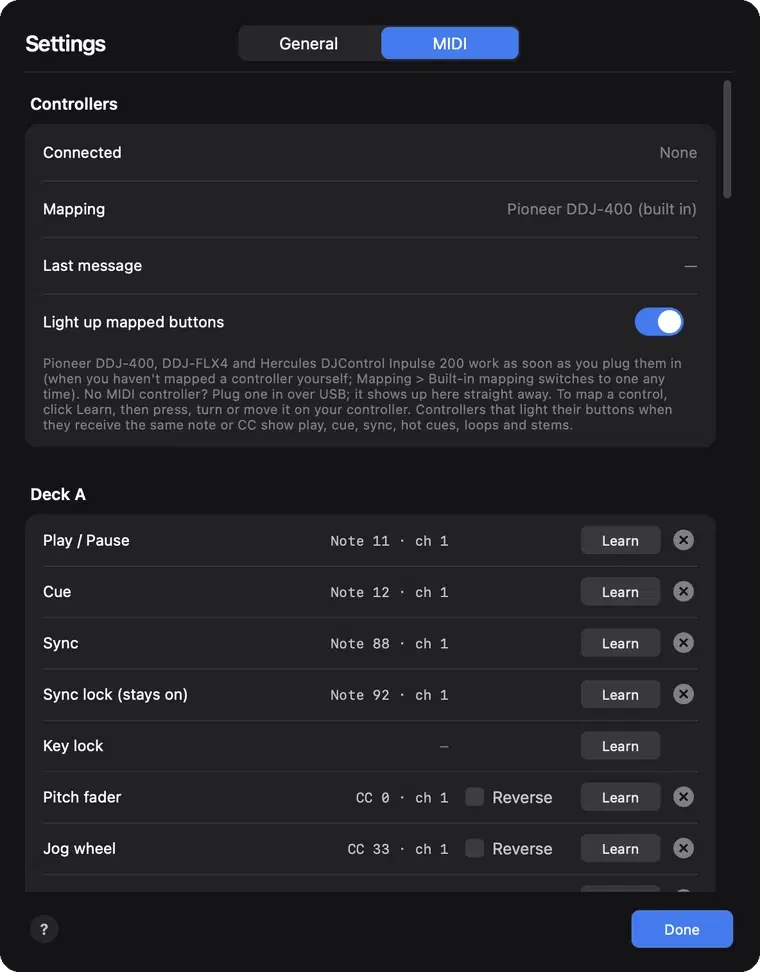
Settings, MIDI, Mapping, Built-in mapping switches to one of them at any time. Any other MIDI controller works with MIDI learn.
Pioneer DDJ-400 and DDJ-FLX4
Both Pioneers use the same layout. The decks, mixer and browse knob do what their labels say: PLAY/PAUSE, CUE, BEAT SYNC, TEMPO, the jog wheels, TRIM (the deck's gain), HI, MID and LOW, the CFX knob (filter), channel faders, crossfader, the headphone CUE buttons, HEADPHONES MIXING and LEVEL, and LOAD.
- Shift + CUE sets the track's cue point. Holding BEAT SYNC, or Shift + BEAT SYNC, turns on sync lock.
- Hot Cue pad mode: pads 1 to 4 are hot cues (Shift + pad deletes one), and pads 5 to 8 mute vocals, drums, bass and other.
- Beat Loop pad mode: pads 3 to 7 are loops of 1, 2, 4, 8 and 16 beats. LOOP IN held, or RELOOP/EXIT, starts a 4-beat loop.
- Sampler pad mode: pads 1 to 6 are the six stems: vocals, drums, bass, guitar, piano and other.
- Beat FX: the channel switch picks the deck (on the DDJ-400, MASTER picks both), FX SELECT steps through Echo, Reverb and Crush, ON/OFF turns it on or off, the BEAT arrows make the echo shorter or longer and LEVEL/DEPTH sets the amount.
Hercules DJControl Inpulse 200
Play, Cue, Sync, the pitch faders, jog wheels, gain, the bass and treble EQ, the filter knobs, channel faders, crossfader, headphone cue buttons, headphone volume, the browse knob and Load work as labelled.
- Shift + Cue sets the track's cue point. Shift + Sync turns on sync lock.
- Pad mode 1 (Hot Cue): pads 1 to 4 are hot cues, and Shift + pad deletes one.
- Pad mode 2 (Loop): loops of 1, 2, 4 and 8 beats. Loop In held starts a 4-beat loop.
- Pad mode 3 (FX): Echo, Reverb and Crush on or off.
- Pad mode 4 (Sampler): mute vocals, drums, bass and other.
Pioneer DDJ-200
From 0.1.8. PLAY/PAUSE, CUE, BEAT SYNC, TEMPO, the jog wheels, HI, MID and LOW, the CFX knob (filter), channel faders, crossfader and the headphone CUE buttons work as labelled. The DDJ-200 was made for phone apps and has no browse knob or LOAD buttons, so load tracks on screen.
- Shift + CUE sets the track's cue point. Holding BEAT SYNC, or Shift + BEAT SYNC, turns on sync lock.
- Pads 1 to 4 are hot cues (Shift + pad deletes one), and pads 5 to 8 mute vocals, drums, bass and other.
AlphaTheta DDJ-FLX2
From 0.1.8. The decks and mixer work as on the DDJ-FLX4, with the headphone level knob. The DDJ-FLX2 has no TRIM, browse knob or LOAD buttons, so load tracks on screen.
- Shift + CUE sets the track's cue point. Hold BEAT SYNC to turn on sync lock (Shift + BEAT SYNC changes the pad mode on the unit).
- First pad mode: pads 1 to 4 are hot cues (Shift + pad deletes one), and pads 5 to 8 mute vocals, drums, bass and other.
- Third pad mode: pads 1 to 5 are loops of 1, 2, 4, 8 and 16 beats.
- Fourth pad mode: pads 1 to 6 are the six stems.
Pioneer DDJ-SB3
From 0.1.8, decks 1 and 2. PLAY/PAUSE, CUE, SYNC, TEMPO, the jog wheels, TRIM, HI, MID and LOW, the FILTER knobs, channel faders, crossfader, headphone CUE buttons and level, KEY LOCK, the browse knob and LOAD work as labelled.
- Shift + CUE sets the track's cue point and Shift + SYNC turns on sync lock. AUTO LOOP starts a 4-beat loop.
- HOT CUE pad mode: pads 1 to 4 are hot cues (Shift + pad deletes one), and pads 5 to 8 mute vocals, drums, bass and other.
- ROLL pad mode: pads 1 to 5 are loops of 1, 2, 4, 8 and 16 beats.
- SAMPLER pad mode: pads 1 to 6 are the six stems.
- FX 1 works deck A and FX 2 deck B: the three FX buttons turn Echo, Reverb and Crush on or off, and the three knobs set the amount.
Pioneer DDJ-REV1
From 0.1.8, decks 1 and 2 (decks 3 and 4 aren't mapped). PLAY/PAUSE, CUE, SYNC, TEMPO, the jog wheels, TRIM, HI, MID and LOW, the FILTER knobs, channel faders, crossfader, headphone CUE buttons and level, the browse knob and LOAD work as labelled.
- Shift + CUE sets the track's cue point and Shift + SYNC turns on sync lock. AUTO LOOP starts a 4-beat loop.
- HOT CUE pad mode: pads 1 to 4 are hot cues (Shift + pad deletes one), and pads 5 to 8 mute vocals, drums, bass and other.
- AUTO LOOP pad mode: pads 1 to 5 are loops of 1, 2, 4, 8 and 16 beats.
- SAMPLER pad mode: pads 1 to 6 are the six stems.
- FX 1 works deck A and FX 2 deck B: ON/OFF turns the selected effect on or off, and LEVEL/DEPTH sets the amount.
Hercules DJControl Inpulse 300 and 500
From 0.1.8 (the original Inpulse 300, not the MK2). Play, Cue, Sync, the pitch faders, jog wheels, gain, the three band EQ, the filter knobs, channel faders, crossfader, headphone cue buttons, headphone volume, the browse knob and Load work as labelled. The Inpulse 500's cue mix knob blends cued channels and the master in your headphones.
- Loop In held starts a 4-beat loop.
- Pad mode 1 (Hot Cue): pads 1 to 4 are hot cues, and Shift + pad deletes one.
- Pad mode 2 (Loop): loops of 1, 2, 4 and 8 beats.
- Pad mode 4 (Sampler): the six stems.
- Inpulse 300: FX turns the selected effect on or off and the Dry/Wet knob sets its amount.
- Inpulse 500: Shift + Cue sets the track's cue point and Shift + Sync turns on sync lock.
Other controllers
Map any other MIDI DJ controller with MIDI learn. Besides the deck and mixer controls, you can learn gain, sync lock, set cue, delete hot cue, echo length shorter and longer, Shift, FX select and FX channel, and (from 0.1.8) beat jump, loop in, loop out, reloop, slip, quantise, brake, record, the crossfader stem effect and tempo blend, so a controller's own buttons work the way they do on the hardware.
Numark and Reloop controllers, and the MK2 versions of the Inpulse, aren't built in yet because their makers haven't published a MIDI list for them.
Want your controller built in? Tell us which one on the requests page.
Questions
Do I need to set anything up for a supported controller?
No. Plug it in and it's mapped. If you've made your own mapping before, choose the built-in one in Settings, MIDI, Mapping, Built-in mapping.
Can I use the controller's headphone output?
Yes. These controllers have their own sound card. Choose it in Settings, General, Audio for the speakers and pick its second pair of outputs for your headphones.
Does the Mac App Store version have these mappings?
Not yet: it works with any controller through MIDI learn. The built-in mappings are in the downloadable version for Mac, Windows and Linux.
Try it in Stemdeck
Free downloads for Mac, Windows and Linux, with the stem models included. Coming soon to the Mac App Store for Macs with Apple silicon.