
 StemDeckDJ
Talk over your mix: a free DJ microphone with talkover
From 0.1.14, the live decks have a microphone. Plug a mic into your audio interface, DJ controller or computer, press MIC on the mixer and talk: StemDeckDJ lowers the music while you speak and brings it back when you stop, so shout-outs, track names and hype lines cut through without you touching a fader.
Your voice goes into your recordings and live broadcasts with the music, cleaned up by a low cut, a noise gate, a compressor and a limiter. It's free, like the rest of the decks. With StemDeckDJ Pro, the looper can record your voice too, in time with the beat, and stack layers on top.
Turn on the mic
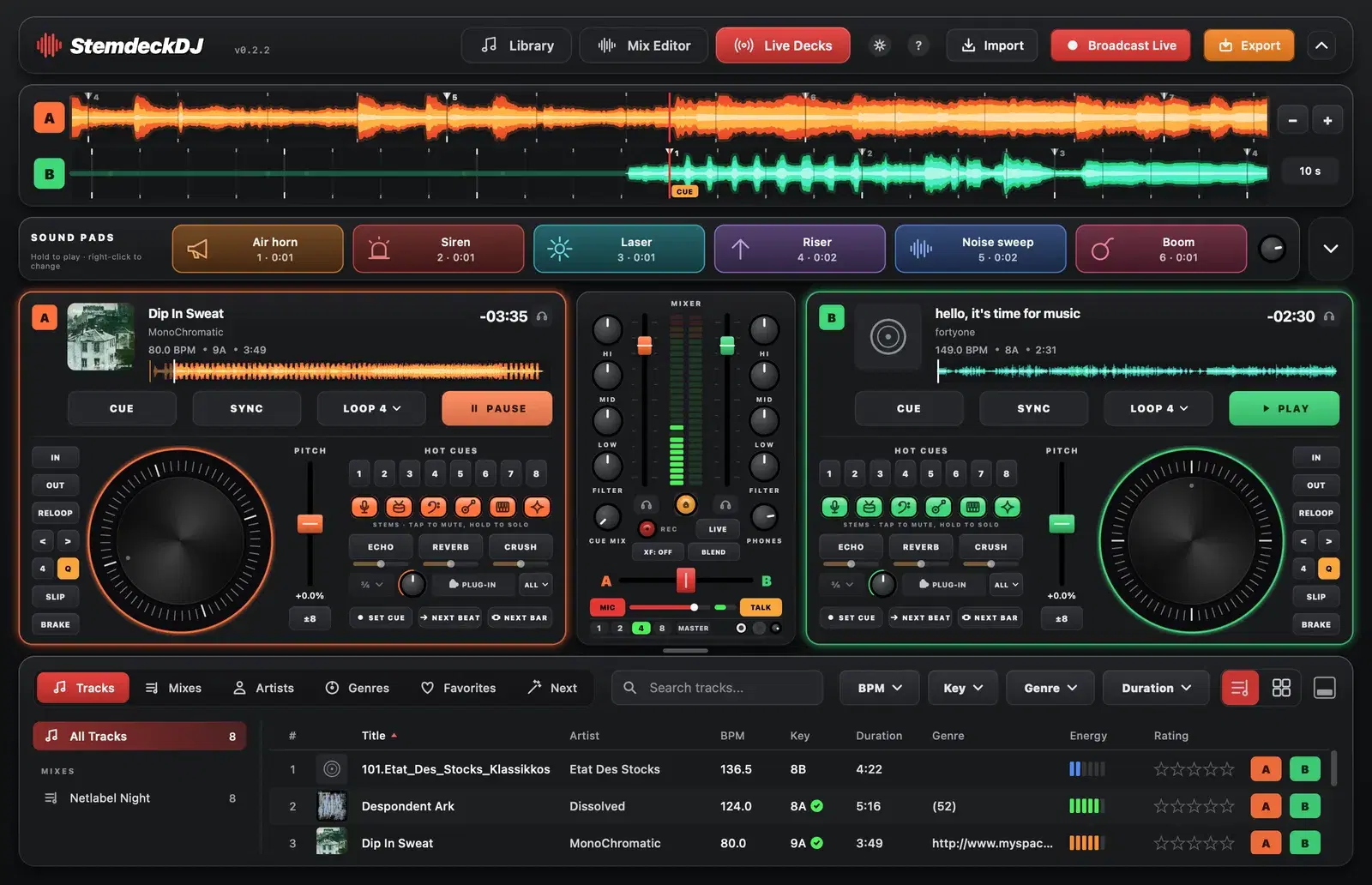
- On the live decks, press MIC in the row under the crossfader (or Q on the keyboard). The first time, your computer asks whether StemDeckDJ may use the microphone: allow it. StemDeckDJ only opens the mic while MIC is on.
- The slider next to MIC sets its level (double-click it to go back to the middle), and the small meter shows your voice. Press MIC again to turn it off.
- Right-click MIC to open its settings: which input it uses, where it goes and how it sounds.
Talkover
- While the mic is on and you speak, StemDeckDJ lowers the decks by 12 dB, then brings them back a moment after you stop, so pauses between words don't make the music pump. TALK lights up while it does.
- Hold TALK (or T on the keyboard) to lower the music straight away, for example before you start a sentence.
- Settings > Microphone sets how far the music goes down (3 to 30 dB), or turns automatic talkover off so only TALK does it.
- Talkover lowers the decks, not the looper or the sound pads, so a vocal loop or an air horn stays at its level while you talk.
Where your voice goes
- Recordings and broadcasts: on by default. When you record your set or go live, your voice is mixed in with the music.
- Speakers: off by default. With a mic and speakers in the same room, hearing yourself through a computer comes a little late and can feed back. Turn it on when the mic goes through a PA you control.
- Headphones: lets you hear your mic in your headphones, a little late.
- Each mic has its own switches in Settings > Microphone.
Go live with your mic and camera
Sound settings
- Input device: the speakers' own device (an audio interface or DJ controller with a mic input) or any other, such as your computer's built-in mic or a USB mic.
- Input: which input the mic is plugged into, mono or a stereo pair. The meter shows when sound arrives, even before you press MIC.
- Gain, a three-band EQ, a low cut at 80 Hz (rumble and handling noise), a noise gate (silence between words) and a compressor that evens out loud and quiet speech. A limiter always stops your voice clipping.
- A second mic: Show MIC 2 on the mixer adds a button for it, with its own input and settings, for a co-host or an MC.
Controllers and keyboard
- Q turns the mic on and off; hold T to talk over.
- In Settings > MIDI you can map Mic on, Mic level, Talk and the looper's record, source and undo to any controller button or knob.
- Many DJ controllers mix their mic socket into the speakers inside the controller, so the computer never hears it and it won't be in your recordings or streams. If yours has a mic input that shows up as an input on the computer, choose it in Settings > Microphone and press MIC in StemDeckDJ instead.
Loop your voice (StemDeckDJ Pro)
- The looper's source button picks what it records: MASTER (the mix, as before), MIC (only your voice) or BOTH.
- Press the looper's button to record 1, 2, 4 or 8 bars from the next beat. StemDeckDJ allows for your sound card's delay, so a word sung on the beat lands on the beat in the loop. If your loops land early or late, nudge Looper timing in Settings > Microphone.
- Shift-click the looper button while a loop plays (or right-click it) to record another layer on top: harmonies, beatbox, ad-libs. Each layer starts at the start of the loop. Undo last layer takes the last one off, and the loop never records itself.
- Right-click the looper and choose Save loop to library to keep it as a track you can load on a deck or put in a mix.
Questions
Is the microphone free?
Yes. The mic, talkover, its sound settings and putting it into recordings and broadcasts are free. Looping your voice with the looper is part of StemDeckDJ Pro.
Which microphones work?
Any mic your computer can hear: the built-in one, a USB mic, or a mic plugged into an audio interface or a DJ controller that sends its mic input to the computer. Choose it in Settings > Microphone.
Why can't I hear my mic in the speakers?
It's off by default, to avoid a delayed echo and feedback when the mic and speakers are in the same room. Turn on MIC in the speakers in Settings > Microphone. Your voice is in recordings and broadcasts either way.
Does StemDeckDJ record or send my voice anywhere?
No. The mic only goes where you send it: your speakers, your headphones, your own recordings and broadcasts you start. StemDeckDJ opens the microphone only while MIC is on.
Try it in StemDeckDJ
Free downloads for Mac, Windows and Linux, with the stem models included. Coming soon to the Mac App Store for Macs with Apple silicon.